
Introduction: A Practical MCP Integration Methodology
Agentic AI is a much-talked-about concept, but integrating it into your daily workflows is a genuinely powerful way to amplify your individual skill set. At Top Rope Media, we’ve developed a systematic approach to extending Claude’s capabilities through Model Context Protocol (MCP) servers via Claude Desktop. This methodology allows us to create AI-assisted workflows that directly integrate with our business tools and data sources. We’ve put this guide together to walk you through that process.
MCP servers are specialized integrations that connect Claude to external services and APIs. Think of them as bridges that allow Claude to interact with your tools and data sources directly through natural conversation, transforming how we work with everything from file management to project tracking to content publishing.
How MCP Architecture Works
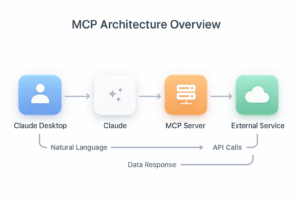
To understand how MCP creates this connection, let’s look at the fundamental architecture. Natural language requests flow from user to Claude, which uses MCP servers to translate requests into API calls. The MCP server handles authentication, formatting, and parsing. Results return through the same path, delivered back to the user in natural language.
Official MCP Resources
Core Documentation:
- Model Context Protocol Official Site: https://modelcontextprotocol.io/
- MCP Documentation: https://modelcontextprotocol.io/docs
- MCP Specification: https://spec.modelcontextprotocol.io/
- Anthropic’s MCP Introduction: https://www.anthropic.com/news/model-context-protocol
Why Claude Desktop Instead of Code Editors?
While AI-powered code editors like Cursor and VS Code with Copilot are excellent for software development tasks, we’ve chosen to build our MCP infrastructure within Claude Desktop for several strategic reasons:
Conversational Context: Claude Desktop excels at maintaining complex, multi-turn conversations across diverse topics. We can seamlessly shift from discussing marketing strategy to analyzing financial data to managing project tasks without switching applications or losing context.
Cross-Domain Workflows: Our work at Top Rope Media spans content creation, client communications, project management, data analysis, and strategic planning. Claude Desktop serves as a unified interface for all these activities, whereas code editors are optimized primarily for software development.
Natural Language Interface: Many of our team members aren’t developers. Claude Desktop allows anyone to leverage powerful integrations through conversation rather than requiring knowledge of specific commands or code syntax.
Flexible Tool Orchestration: Through MCP, Claude can intelligently combine tools from different domains in a single workflow. For example, searching Google Drive for client documents, analyzing data within them, and then publishing insights to WordPress – all in one conversational flow.
Documentation and Communication: Claude Desktop naturally produces shareable outputs. We can generate reports, draft content, create documentation, and prepare client communications all within the same environment where we’re doing the analytical work.
That said, code editors with AI assistance remain invaluable for pure software development. The key is using the right tool for each type of work: Claude Desktop for business operations and multi-domain workflows, code editors for focused development sessions.
Claude Desktop & Setup
- Claude Desktop Download: https://claude.ai/download
- Claude Desktop Configuration Docs: https://modelcontextprotocol.io/docs/tools/desktop
Foundation: Filesystem Tools
Every MCP implementation starts with the filesystem tools. These are the most fundamental and versatile MCP servers because they provide Claude with direct access to read, write, and manage files on your local system.
Why Filesystem Tools Come First
The filesystem MCP server is foundational for several reasons:
Universal Access: Almost every workflow involves files – whether you’re managing code, documents, configurations, or data. Having Claude able to access your filesystem means it can participate in virtually any task.
Safe Exploration: The filesystem server uses allowed directories configuration, meaning you explicitly define which folders Claude can access. This gives you control over security while enabling powerful capabilities.
Building Block for Other MCPs: Many specialized MCP servers we build later rely on filesystem access for configuration files, reading credentials, or managing output. The filesystem server is often a dependency for other integrations.
Example MCP Servers
- Filesystem MCP Server: https://github.com/modelcontextprotocol/servers/tree/main/src/filesystem
- Google Workspace MCP: https://github.com/modelcontextprotocol/servers/tree/main/src/google-drive
- GitHub MCP Server: https://github.com/modelcontextprotocol/servers/tree/main/src/github
Understanding the Security Model
The filesystem MCP implements a critical security boundary that protects sensitive configuration while allowing Claude to work effectively. Claude’s configuration and credentials remain in protected directories that Claude cannot access, while your working directories are explicitly allowed. This ensures Claude cannot modify its own configuration or expose sensitive credentials.
Technical Prerequisites
Before diving into MCP implementation, it’s important to have some foundational technical skills:
Terminal Familiarity: You’ll need basic comfort with command-line operations to install packages (using npm or similar package managers), navigate directories, and run server commands. Understanding concepts like working directories, environment variables, and process execution will make setup much smoother.
Some Coding Experience: While you don’t need to be a software engineer, familiarity with concepts like JSON syntax, configuration files, and basic programming structures will help tremendously. You’ll be editing JSON configuration files and potentially reviewing TypeScript code.
Understanding of File Systems: Knowing how directories are structured, what file paths are, and how permissions work is essential for configuring MCP servers safely and effectively.
Text Editor Proficiency: You’ll need to be comfortable editing configuration files with a text editor. These are typically JSON files that require precise syntax.
Most importantly, you need to understand a critical security principle: your Claude Desktop configuration file should always be stored outside of any directories that Claude has filesystem access to. On macOS, the config file is located at `~/Library/Application Support/Claude/claude_desktop_config.json` – a system directory that should never be added to Claude’s allowed directories list. This separation ensures that Claude cannot modify its own configuration or access sensitive credentials stored in environment variables.
Installing Filesystem Tools
The installation process is straightforward and follows a pattern we’ll use for all MCP servers:
1. Install the package: The @modelcontextprotocol/server-filesystem package provides the core functionality. You can install it globally or in a dedicated directory for your MCP servers.
2. Configure Claude Desktop: Add the server to your Claude Desktop configuration file (typically located at ~/Library/Application Support/Claude/claude_desktop_config.json on Mac). The configuration specifies the command to run the server and which directories to allow access to.
3. Restart Claude Desktop: The configuration is loaded when Claude Desktop starts, so you’ll need to restart the application for changes to take effect.
4. Verify the connection: You can confirm Claude has access by asking it to list files in one of your allowed directories.
Key Capabilities
Once configured, the filesystem MCP gives Claude powerful abilities:
Reading Files: Claude can examine the contents of text files, code, configurations, and documents. This allows it to analyze your work, understand context, and provide informed suggestions.
Writing and Editing: Claude can create new files or make precise edits to existing ones using line-based replacement. This is invaluable for code generation, documentation, and configuration management.
Directory Navigation: Claude can explore your directory structure, search for files by name or pattern, and understand your project organization.
File Operations: Moving files, creating directories, and managing file metadata are all available, enabling Claude to help organize and maintain your workspace.
Our MCP Discovery and Implementation Methodology
With filesystem tools as our foundation, we’ve developed a systematic approach to identifying opportunities for new MCP servers and implementing them efficiently.
Step 1: Identify Repetitive or Complex Workflows
The best candidates for MCP integration are tasks that meet one or more of these criteria:
Repetitive API Interactions: Tasks that require you to manually interact with APIs or web interfaces repeatedly – like checking project statuses, updating records, or pulling reports.
Multi-Step Processes: Workflows that involve several steps across different tools – like creating a blog post that requires gathering data, formatting content, and publishing.
Data Synthesis: Tasks that require combining information from multiple sources to make decisions or create outputs.
Context-Heavy Operations: Work that requires understanding project history, previous decisions, or complex relationships between data points.
For example, we identified WordPress content management as a prime candidate because we were constantly switching between conversation with Claude (for content ideation and writing) and the WordPress admin interface (for publishing and formatting).
Step 2: Evaluate Existing MCP Servers
Before building a custom solution, we check if an MCP server already exists. The MCP ecosystem is growing rapidly, with servers available for popular services like:
Development Tools: GitHub, GitLab, Linear, Sentry
Productivity: Google Drive, Slack, Gmail
Databases: PostgreSQL, SQLite, MongoDB
Cloud Services: AWS, Google Cloud, various APIs
We check the official MCP servers repository and community contributions. If an existing server meets 80% of our needs, we’ll often use it and potentially contribute improvements rather than building from scratch.
Step 3: Assess the API Landscape
If we’re building a custom MCP server, the next step is evaluating the target service’s API:
API Documentation Quality: Well-documented APIs with clear examples make implementation much faster. REST APIs are generally easier to work with than complex SOAP or proprietary protocols.
Authentication Methods: We prefer APIs that support Application Passwords, OAuth tokens, or API keys over those requiring complex authentication flows. The authentication method needs to work with MCP’s stdio communication model.
Rate Limits and Quotas: Understanding the API’s limitations helps us design appropriate error handling and user feedback.
Coverage: We map the API endpoints to our use cases to ensure the API provides the functionality we need. Sometimes an API looks comprehensive but lacks specific capabilities we require.
Step 4: Rapid Prototyping with TypeScript
We’ve standardized on TypeScript for MCP server development because:
Type Safety: TypeScript’s type system catches errors early and makes the code more maintainable, especially important when working with external APIs.
MCP SDK: The official @modelcontextprotocol/sdk is written in TypeScript and provides excellent type definitions for all MCP constructs.
Async/Await: Modern JavaScript’s async patterns make it natural to work with API calls and I/O operations.
Rich Ecosystem: NPM provides libraries for virtually any API or service we want to integrate.
Our prototyping process typically follows this pattern:
1. Set up a basic server structure: We start with the MCP SDK’s server template, defining the basic server metadata and establishing the connection handler.
2. Implement read-only tools first: We begin with safe, read-only operations like listing resources or fetching data. This lets us test the API connection and authentication without risk of modifying data.
3. Add write capabilities incrementally: Once read operations work reliably, we add tools that create, update, or delete resources, implementing appropriate safety measures like confirmation prompts or default draft statuses.
4. Test with real workflows: We use the MCP server in actual work scenarios to identify gaps, edge cases, and usability issues that don’t emerge from pure testing.
Step 5: Configuration and Security
Every MCP server needs proper configuration management:
Environment Variables: Sensitive credentials should never be hardcoded. We use environment variables in the Claude Desktop config to pass API keys, passwords, and URLs to the MCP server.
Safe Defaults: Write operations should default to safe states. For example, the WordPress MCP creates posts as drafts by default rather than immediately publishing.
Error Handling: Clear error messages help Claude (and us) understand when something goes wrong and how to fix it. We include context about rate limits, authentication failures, and invalid inputs.
Validation: Input validation prevents malformed requests from reaching the API and potentially causing problems.
Security & Best Practices
- MCP Security Best Practices: https://modelcontextprotocol.io/docs/concepts/security
- OAuth 2.0 Specification: https://oauth.net/2/
Step 6: Documentation and Knowledge Sharing
As we develop each MCP server, we document:
Installation Instructions: Step-by-step setup procedures, including dependencies, configuration examples, and verification steps.
Tool Descriptions: Clear explanations of what each tool does, what parameters it accepts, and what results it returns. This helps Claude use the tools effectively.
Common Patterns: Usage examples for typical workflows, showing how to combine tools to accomplish real tasks.
Troubleshooting: Known issues, common errors, and how to resolve them.
This documentation serves multiple purposes: it helps team members adopt the MCP server, provides reference material when issues arise, and can be shared with the community if we open-source the server.
Real-World Example: The WordPress MCP Journey
Our WordPress MCP server demonstrates this methodology in action:
Identification: We noticed we were constantly context-switching between Claude conversations (where we’d draft and refine content) and the WordPress admin (where we’d copy, paste, format, and publish). This broke our flow and introduced opportunities for errors.
Evaluation: We found a basic WordPress MCP server in the community but it only supported read operations. We needed write capabilities for our content workflow.
API Assessment: The WordPress REST API is well-documented, supports Application Passwords for authentication, and provides comprehensive endpoints for posts, categories, tags, and media.
Implementation: We built the server in TypeScript using the MCP SDK, starting with read-only tools (listing posts, searching content), then adding write capabilities (creating and updating posts), and finally advanced features (category/tag management, media uploads).
Configuration: We used environment variables for the WordPress URL, username, and Application Password. Posts default to draft status for safety.
Testing: This very blog post you’re reading was created and updated using the WordPress MCP, demonstrating its real-world utility.
The Complete WordPress Workflow
The entire content creation process happens through conversation. The user never leaves Claude Desktop, yet content flows seamlessly to WordPress through the MCP server’s API integration. Each step maintains context and state, allowing for natural iteration and refinement from draft to publication.
Current MCP Ecosystem at Top Rope Media
Following this methodology, we’ve built and integrated several MCP servers:
Filesystem: Our foundation, providing access to project files, documentation, and code.
WordPress: Full content management capabilities for our blog and client sites.
Google Drive: Search and retrieve documents, presentations, and spreadsheets to provide context for client work and internal projects.
Linear: Project management integration for the NEA Representative Assembly Business System rebuild and other development projects.
Knowledge Graph: A custom entity-relationship database that helps Claude remember project context, client preferences, and technical decisions across conversations.
Each of these servers was identified through actual workflow pain points, evaluated for ROI, and implemented following the systematic approach outlined above.
Best Practices We’ve Learned
Through building and using multiple MCP servers, we’ve developed some key principles:
Start Small, Iterate: Don’t try to build the perfect MCP server on the first attempt. Start with the minimum viable functionality and expand based on real usage.
Prioritize Safety: Write operations should have safeguards. Use draft modes, confirmation prompts, or read-only default states until you’re confident in the implementation.
Design for Claude’s Context: Remember that Claude will be using these tools through natural language. Clear tool names, explicit parameter descriptions, and informative error messages make a huge difference.
Test in Real Workflows: Synthetic tests are useful, but the real proof is using the MCP server in your actual work. This reveals usability issues and missing features quickly.
Document as You Build: It’s much easier to document while the implementation details are fresh in your mind than to reconstruct them later.
Share and Contribute: The MCP ecosystem benefits when we share our work. If you build something useful, consider contributing it back to the community.
Looking Forward: The AI-Augmented Workflow
The MCP methodology we’ve developed represents a fundamental shift in how we work. Rather than using AI as a separate tool that we consult and then manually implement recommendations, we’re creating integrated workflows where Claude can directly act on our systems and data.
This isn’t about replacing human judgment or creativity – it’s about removing the friction between ideation and implementation. When Claude can access project files, update task statuses, publish content, and manage data directly, we spend less time on mechanical steps and more time on strategic thinking and creative work.
As we continue to build our MCP ecosystem, we’re excited about the possibilities: deeper integration with client systems, automated reporting and analysis, intelligent project management assistance, and workflows we haven’t even imagined yet.
The key is maintaining this systematic approach – identifying real needs, evaluating solutions thoroughly, implementing carefully, and always prioritizing security and control. With this foundation, the possibilities for AI-augmented work are nearly limitless.
This post was created and updated using the WordPress MCP server described within, demonstrating the very methodology it explains.
Last Updated: November 22, 2025
Recent Comments